A simple yet significant step marks the beginning of mastering Fusion 360 basics. Professional designers always save their work before starting a new design. Fusion 360 serves as a popular CAD package for both hobbyists and professionals. Many users don’t take advantage of its most powerful features and processes.
Our research shows that sketches provide the best approach for creating parametric designs. They offer 100% parametric capability and can be positioned relative to other geometry. This Fusion 360 basics tutorial reveals professional secrets that reshape the scene of your project approach. You’ll learn about working accurately with canvas images and understanding design intent when tracing. The content covers everything from Fusion 360 sketch basics to sheet metal fundamentals. Recent updates include Custom Properties for structured, company-specific data and Intent-Driven Design that creates clearer part and assembly processes.
Professional designers use powerful tools and techniques daily but rarely share them with others. These pro tips will help you produce better results whether you’re a beginner or looking to raise your skill level. You’ll work faster and create more impressive designs.
What You Think You Know About Sketching
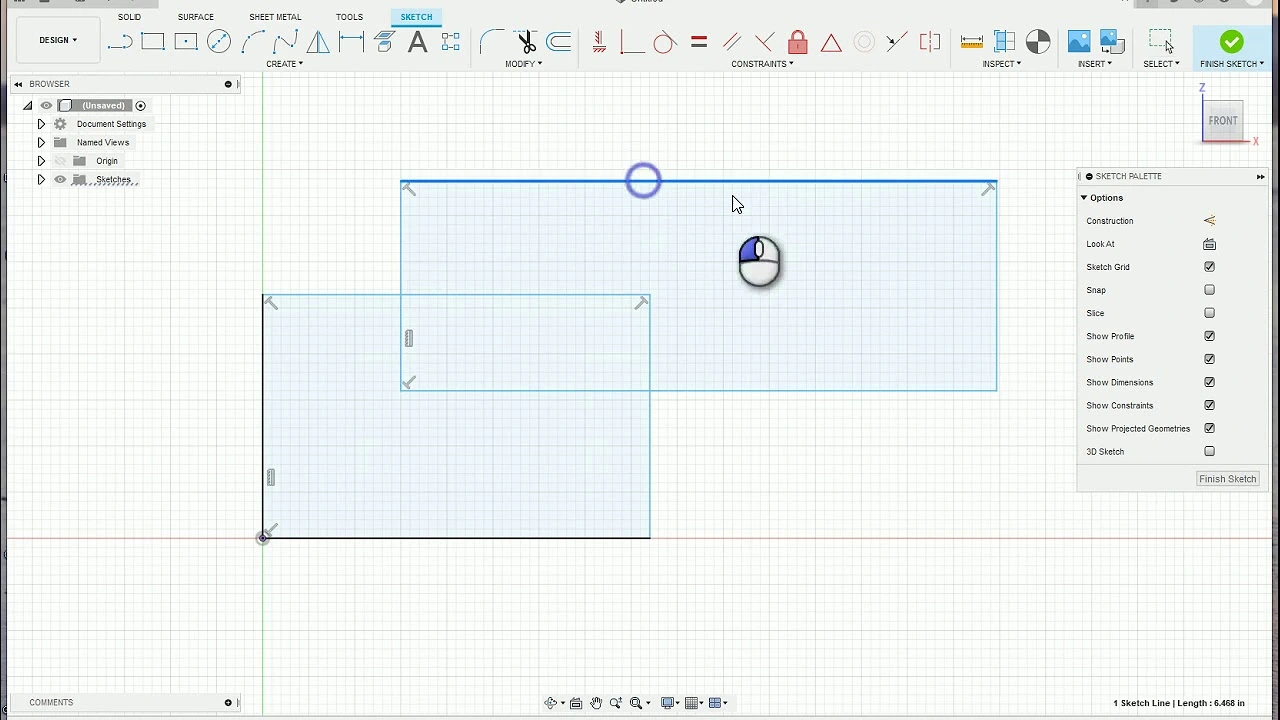
Fusion 360 sketches may look simple, but many users miss out on vital techniques that experts use every day. Smart modeling requires more than just drawing lines – it needs proper planning and structure.
Simple sketches work better than complex ones. Expert designers stick to the “less is more” approach. Their sketches are easier to modify later. Breaking down designs into logical groups works well. Each sketch should contain no more than 3-4 ideas.
Construction geometry acts as your invisible guide. These temporary elements show up as dashed lines and help establish relationships without changing your final model. You can quickly convert elements to construction geometry by selecting them and hitting “X”.
Your sketches must be fully constrained. Every line needs proper constraints and dimensions to lock it in place. This approach prevents unwanted changes and your model will behave as expected during modifications.
The Offset Tool packs more power than most users realize. It goes beyond basic offsetting with features like “Chain Selection” for connected lines and “Match Topology” to maintain shapes across multiple offsets.
Projection tools deserve more attention in your workflow. The choice between “Project” and “Intersect” will optimize your modeling speed. Complex designs become easier when you know which tool fits each situation.
Modeling Smarter, Not Harder
Expert designers know how to use hierarchical organization in Fusion 360 to build complex models quickly. The life-blood of advanced modeling lies in understanding how bodies and components differ. Bodies work as single “chunks” of geometry, while components serve as containers that can move relative to each other – making them ideal for assemblies.
Parametric modeling distinguishes experts from beginners. Smart professionals create named parameters for dimensions they might need to adjust instead of repeatedly typing exact values. You can set up variables that control multiple design aspects simultaneously through the “Modify > Change Parameters” dialog. A few key value changes can instantly resize your entire model with this approach.
The timeline at your screen’s bottom isn’t just for show – it lets you rearrange features without starting over. In spite of that, the parent-child relationships between features must stay intact. Moving a feature that depends on another requires moving both together.
Complex projects work best when structured as distributed assemblies. Major parts should be saved as separate design files, then brought together as linked components using Insert > Insert Into Current Design. This approach keeps individual files light while letting you update components across multiple assemblies.
Smart modeling boils down to planning your parameter structure first, organizing components in a hierarchy, and using the timeline to improve your design process.
Pro-Level Shortcuts and Workspace Tweaks
Professional Fusion 360 users rely on keyboard shortcuts rather than complex modeling techniques as their secret weapon. Pressing the “S” key brings up a shortcut dialog next to your cursor. This gives you quick access to commands you use often.
The menu adapts based on your current work environment. It shows different toolbars when you switch between Sketch and Modeling modes. You can customize your S-key toolbox easily. Just hover over commands and click the arrow to add them for faster access.
The S-key is just the beginning. You can create custom keyboard shortcuts to streamline processes:
- Look for any command in the toolbar
- Wait until three vertical dots appear
- Click “change keyboard shortcut”
- Pick your key combination using Shift, Ctrl, or Alt modifiers
Navigation settings are a great way to get better control. The upper right corner shows your login name. Click it to adjust modeling orientation (Z up), orbit behavior, and zoom direction. Users switching from SolidWorks or Inventor can match their familiar navigation patterns in Fusion.
The Navigation Bar sits at the bottom of your screen. It provides quick access to Constrained Orbit, Zoom Window, and Display Settings. These tools help you create your ideal visual workspace.
Conclusion
Our trip exploring hidden Fusion 360 features has revealed professional techniques that go way beyond simple operations. These secrets will revolutionize your designs and workflow.
You need simple strategic approaches rather than complex ones to sketch effectively. The models remain stable and adaptable when you break designs into logical groups and fully constrain every element. Construction geometry provides the invisible framework that professionals depend on. The offset tool gives versatility that most users never discover.
Smart modeling begins with understanding the significant differences between bodies and components. Parametric modeling emerges as maybe the most powerful method professionals use. It allows designs to change completely through a few key variables. The timeline works as your design history editor and gives you freedom to revise without starting over, though many overlook it.
Expert users stand apart from beginners through keyboard efficiency. The S-key shortcut saves hours in projects, while custom keyboard shortcuts adapt the software to your specific needs. The working environment becomes more comfortable when you adjust navigation settings to match your style.
These professional secrets will change your approach to Fusion 360 fundamentally. You’ll work with its strengths rather than fight against limitations, which leads to better designs in less time. Each technique might seem minor alone, but together they create an integrated approach that raises your work from hobbyist to professional quality.
Try using just one of these techniques when you next open Fusion 360. You’ll soon wonder how you managed without them.